Google Antigravity is an AI-powered development environment that helps developers write, edit, and manage code. However, you may sometimes notice that your code is automatically formatted or rearranged when you save a file.
If you prefer to maintain your existing code formatting, you can disable the Format On Save setting in the editor.
In this tutorial, you will learn how to disable automatic code formatting on save in Google Antigravity IDE on Mac, Windows, or Linux.
Step 1: Open Settings in Google Antigravity
First, open Google Antigravity IDE on your computer.
Open the Settings panel using the following keyboard shortcut:
- Mac:
Cmd + , - Windows/Linux:
Ctrl + ,
You can also open Settings through the application menu.
Once the Settings panel opens, navigate to the Editor settings.
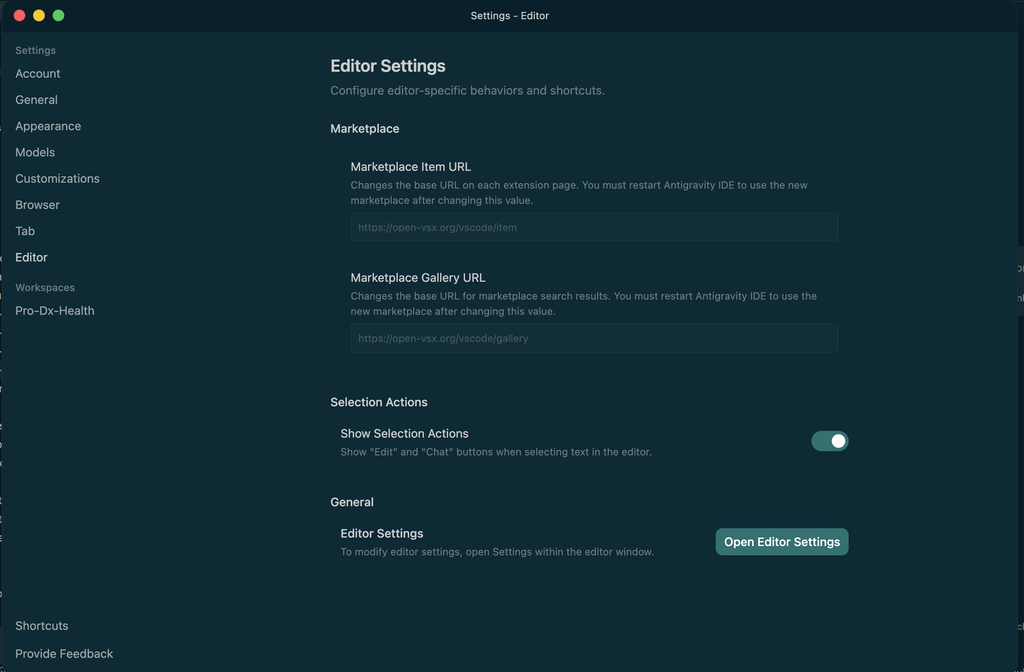
Step 2: Search for Format On Save
In the Settings panel, locate the search box.
Type the following setting name:
Format On Save
The editor will display the matching settings related to automatic code formatting.
Look for the Editor: Format On Save option.
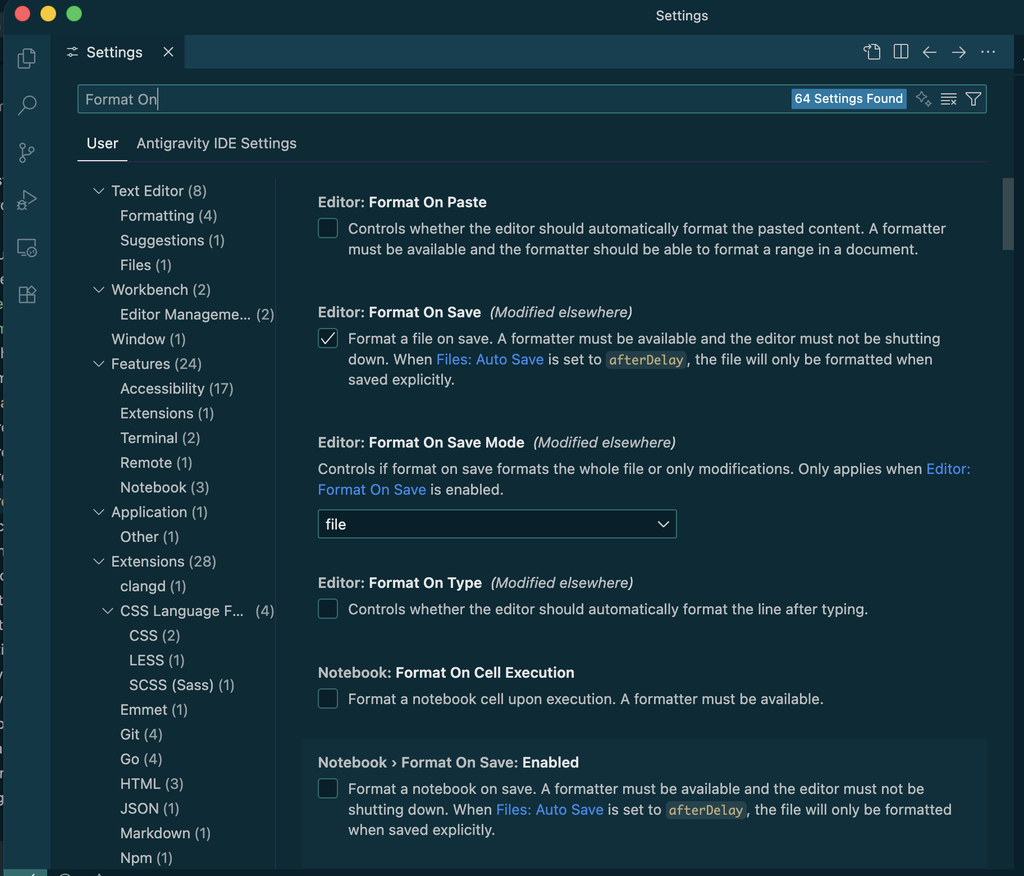
Step 3: Disable Format On Save
Once you find the Editor: Format On Save option, disable it by unchecking the checkbox or switching the toggle off, depending on how the setting appears in your version.
After disabling this option, the editor should no longer automatically run its formatter when you save a file.
This is useful when you want to preserve your existing code layout and avoid unexpected formatting changes during development.
Step 4: Test the Setting
To verify that the setting works:
- Open a source code file in Google Antigravity.
- Make a small formatting change, such as adjusting the spacing or indentation.
- Save the file.
- Check whether the editor automatically reformats the code.
If the code remains in your chosen format, the setting is working as expected.
Note: Disabling Format On Save does not necessarily disable all automatic formatting. A language extension, another formatter setting, or an AI agent may still modify your code.
What If Your Code Is Still Automatically Formatted?
If your code continues to change after disabling Format On Save, check the following settings:
- Editor: Format On Paste – controls formatting triggered by pasting code.
- Editor: Format On Type – controls formatting triggered while typing, where supported.
- Editor: Default Formatter – identifies the formatter selected for the current language.
You can search for these settings individually in the Settings panel.
If an AI agent is editing or rewriting your code, that behavior is separate from the editor’s Format On Save setting. Disabling this option will not prevent AI-generated code changes.
Conclusion
Disabling Format On Save in Google Antigravity IDE is a simple way to prevent the editor’s automatic formatter from changing your code every time you save a file.
Open Settings, search for Format On Save, and turn off Editor: Format On Save.
If you still experience unexpected formatting changes, check the other editor settings and any active language extensions or AI coding features.
I hope this tutorial helps you customize your Google Antigravity development environment.
For more programming tutorials, developer tips, and coding guides, visit CodeForLearning.com.